MERCHANT GETTING STARTED
Welcome to MagiBooking
Get your booking link ready in three steps.
Next step: Add services
Continue setup →1. Add services
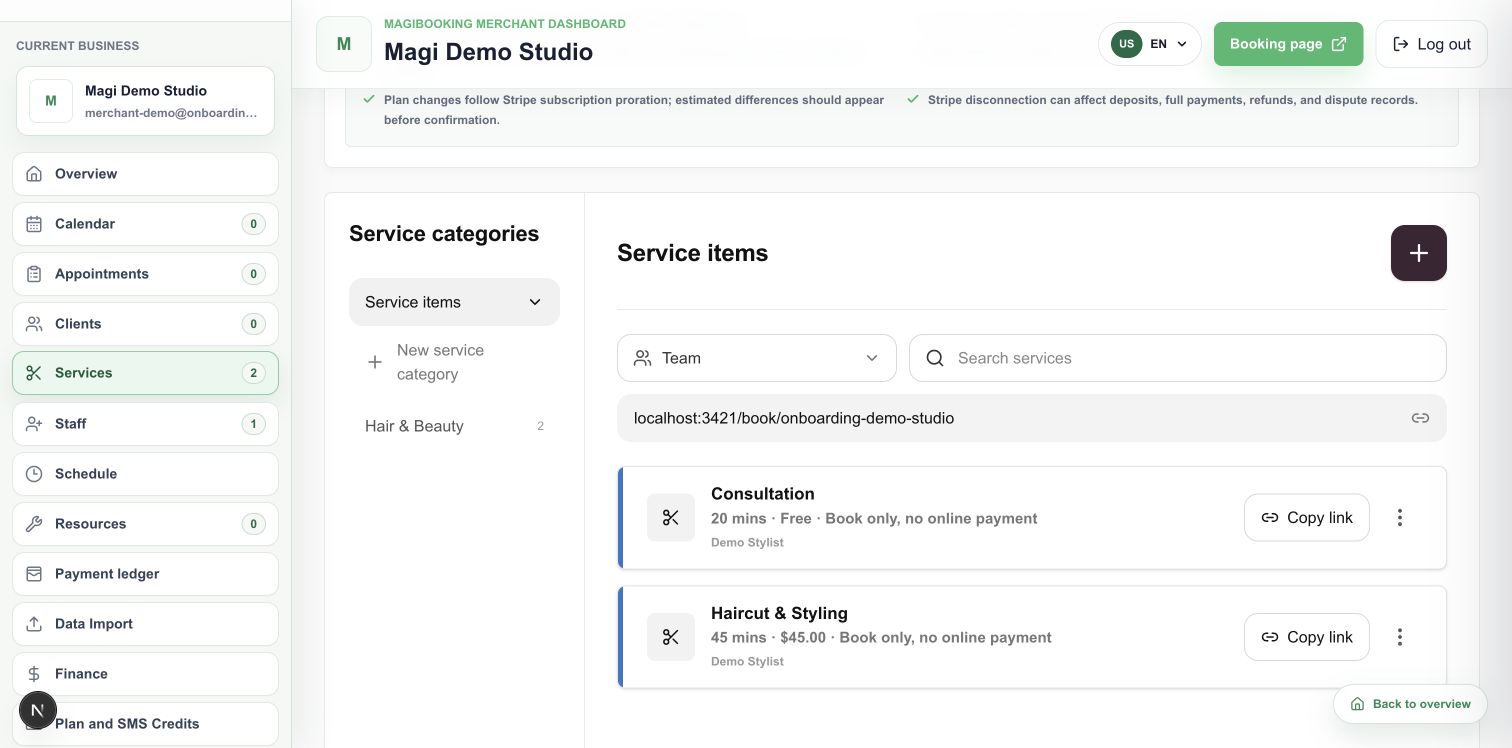
Add services: enter a name, price and duration, and enable online booking.
- Open Services and use the plus button to enter a service name, duration and price.
- Enable online booking and assign at least one staff member who performs this service.
- Save and check the service list. Preview again after changing prices or duration.
2. Set up staff and hours
Set up staff and hours: assign services to staff and check weekly availability.
- Open Staff to add or edit a member, check service assignments and allow client bookings.
- Open Schedule, expand the staff member, select working days, enter start/end and break times, then save.
- Check your business timezone and time off. Available slots require assigned staff with an active schedule.
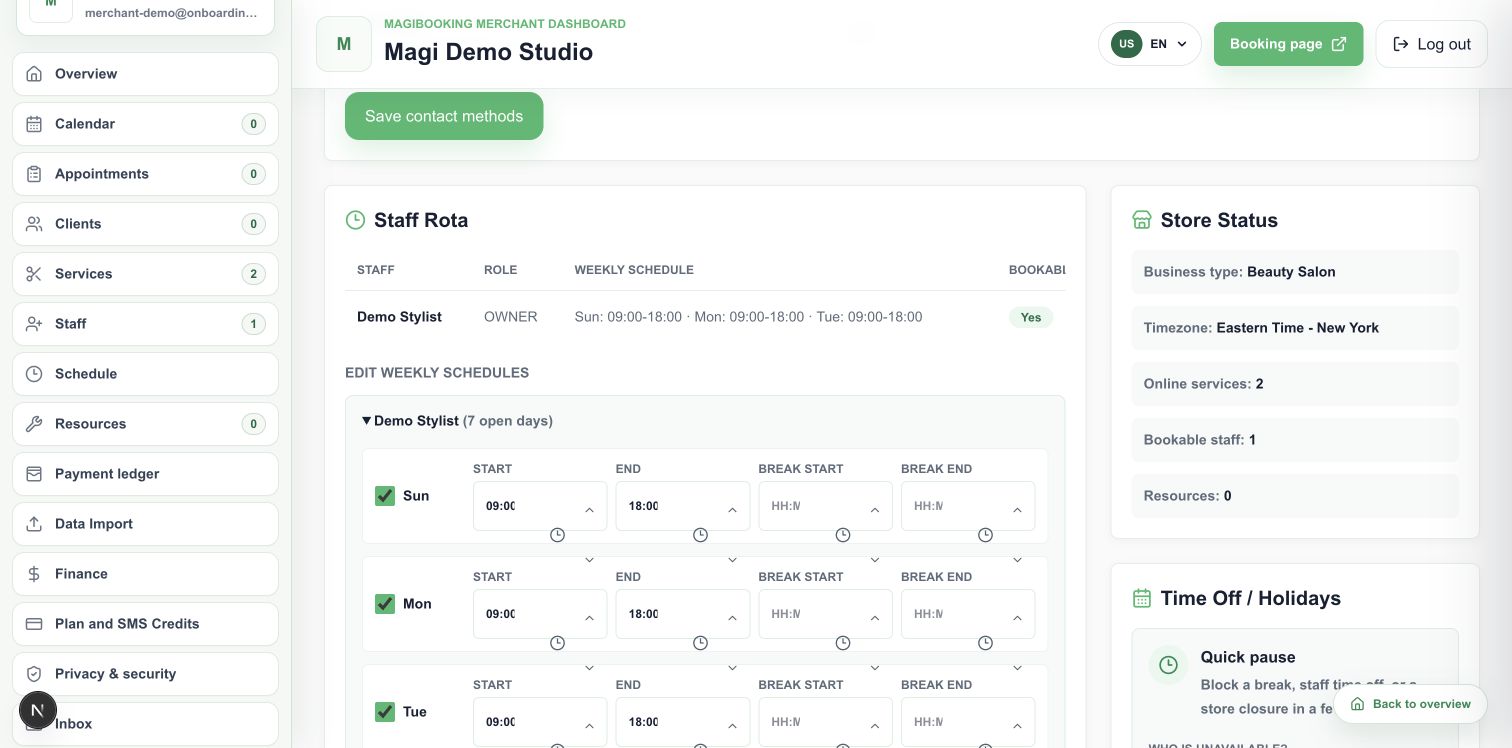
Default hours may already exist. Check that they match your actual working hours.
3. Preview and share your booking link
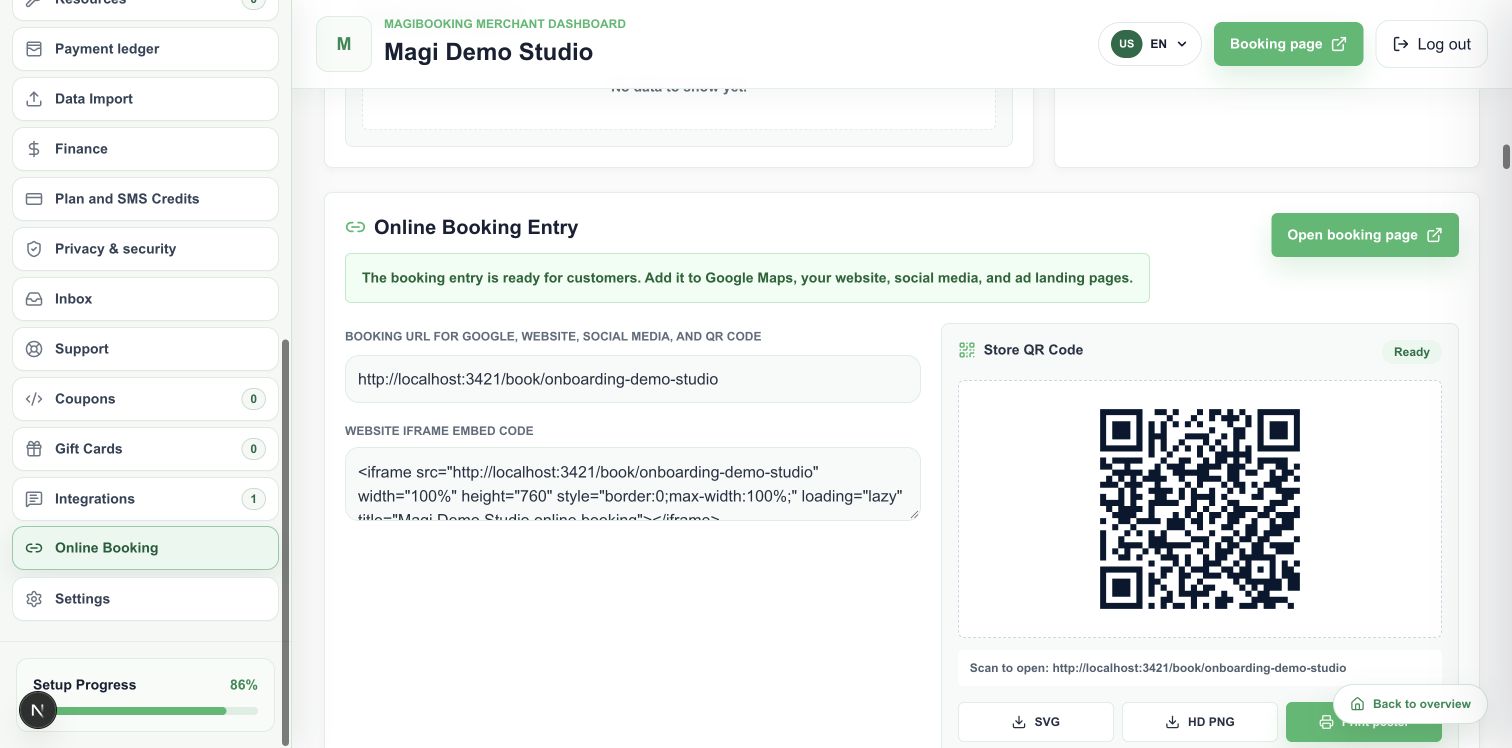
Preview and share: check your booking page, then add the link to your website, social profile or QR code.
- Open Online Booking and choose Open booking page. Select a service and date to check times and prices.
- Copy the booking URL to your website, Google Business Profile or social profile, or download the QR code.
- Return here to confirm you previewed and shared the link. You do not need to submit a real booking or payment to test setup.
You can set up pay-in-store without connecting online payments. Online deposits or prepayment require the corresponding payment setup.
Manage setup reminders
Sign in to manage remindersScreenshots use a demonstration business. Text instructions remain available when images are blocked.